
At some point, every WordPress site owner will need to share access to their dashboard, whether it’s for a developer fixing a bug, a designer tweaking your theme, or a support agent helping with a plugin issue. While it might seem easiest to just hand over your own admin credentials, this can put your entire site at risk.
In this guide, we’ll walk you through the safest and most effective ways to share WordPress access, without compromising your site’s security or control. Whether you’re managing a personal blog or a business website, following these practices will help you collaborate confidently and keep your site protected.
Recommended Method: Create a Temporary User
The safest and most straightforward way to share WordPress access is by creating a new user account for the person who needs it. This method gives them access without exposing your own login credentials, and you can control their permissions and remove access at any time.
1. In your WordPress dashboard, go to
Users > Add New
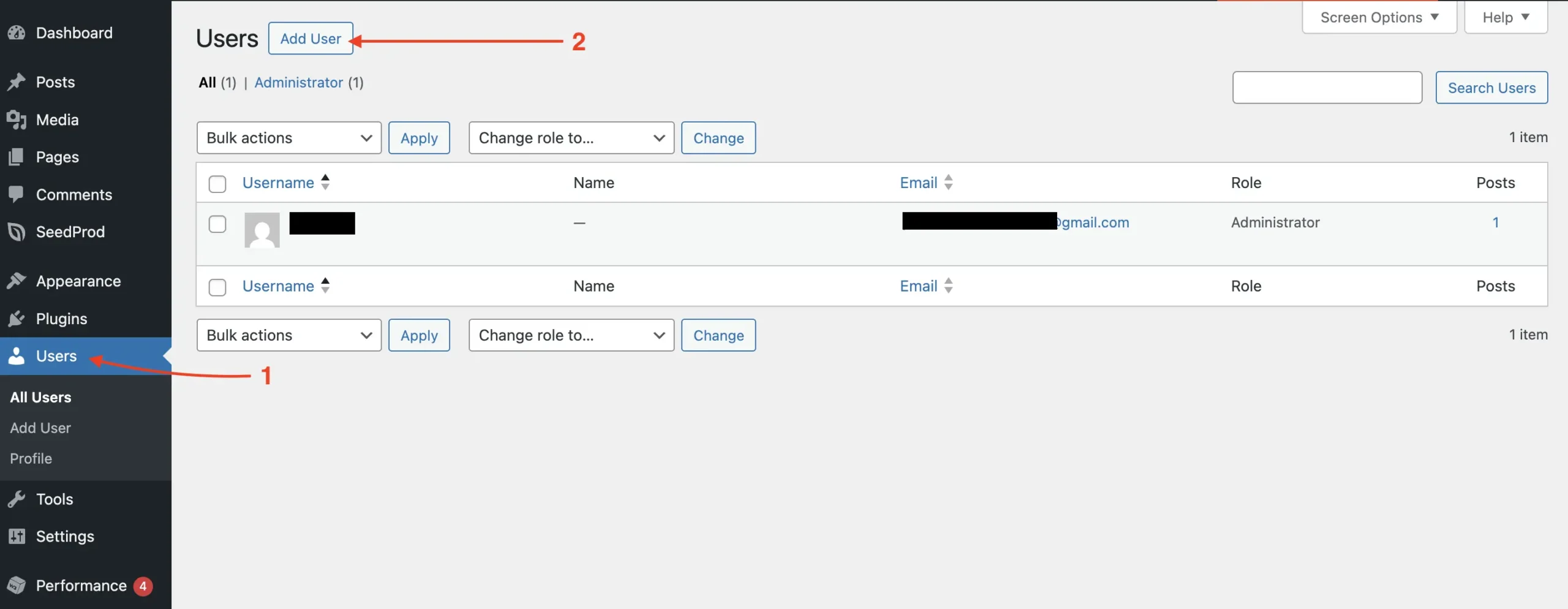
2. Fill in the following required fields:
- Username (e.g., “developer-joe”)
- Email (must be a valid address)
- First Name / Last Name (optional but helpful)
- Set a strong password (WordPress will auto-generate one for you, but you can customize it if needed).
- Choose the appropriate User Role:
- Administrator – Full access (use only if absolutely necessary)
- Editor – Can manage content, but not settings or plugins
- Author / Contributor – Limited content roles
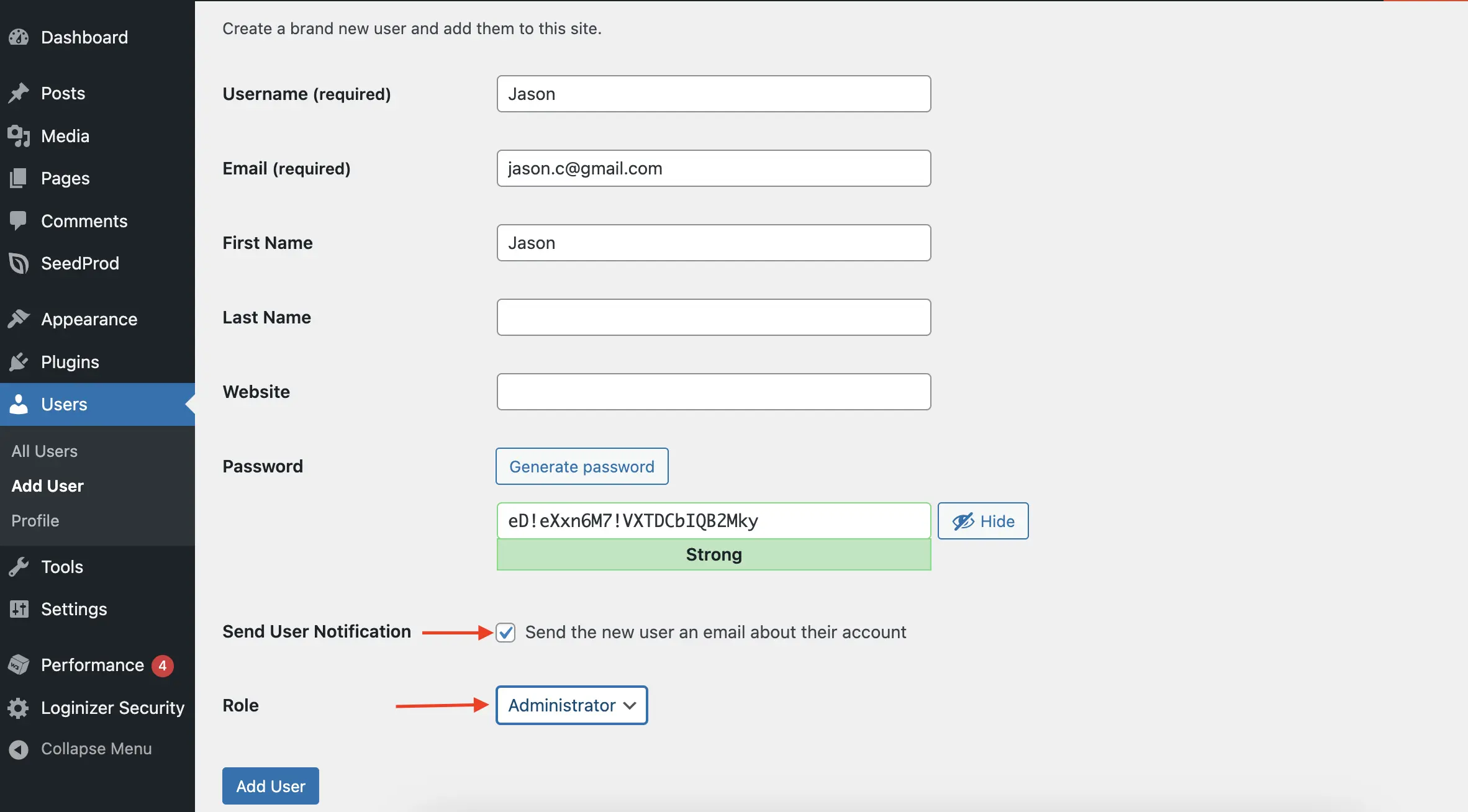
Optional: Check “Send the new user an email about their account” to let them know instantly.
3. Click Add New User to finish.
That’s all! Now, if you have checked the box to notify the user, then they will get an email with a login link. Otherwise, you can just share the username/email and the password you used when filling new user details with them, and they can use that to log in.
Want to Make It Temporary?
If you’re only granting access for a short period (e.g., during a support request), consider using a plugin like Temporary Login Without Password to create a login that expires automatically.
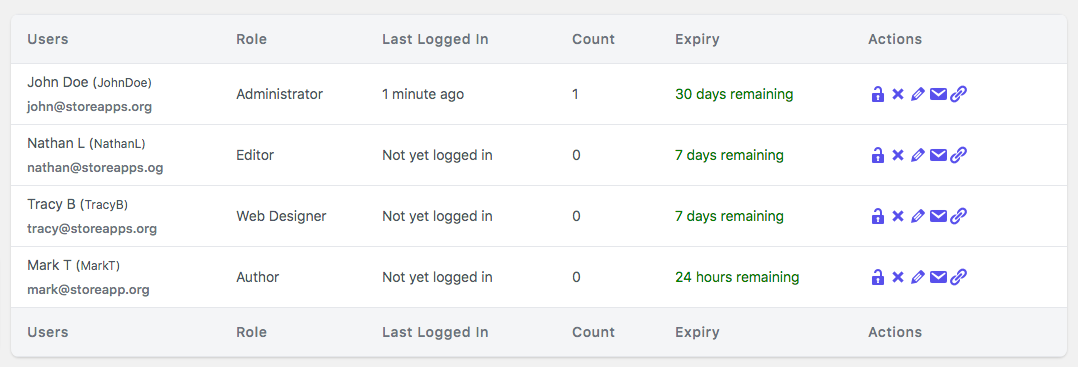
Pros of using Temporary Login Without Password plugin
- Keeps your own credentials private
- Easy to manage and revoke access
- Lets you track who did what via user logs
Cons of using Temporary Login Without Password plugin
- Requires a bit more setup than just sharing a password
- Can be misused if the wrong role is assigned
Creating a new user is the most responsible way to share access, and the first thing we recommend to all WpPatrol clients.
Alternative: Use a Plugin for Temporary Login
If you don’t want to create a full user account or need to share access quickly without setting up a password, using a temporary login plugin is a great option. This is especially helpful when giving access to developers, support teams, or freelancers for short-term tasks.
One of the most popular and secure plugins for this is Temporary Login Without Password by StoreApps.
How to Set Up a Temporary Login:
1. In your WordPress dashboard, go to
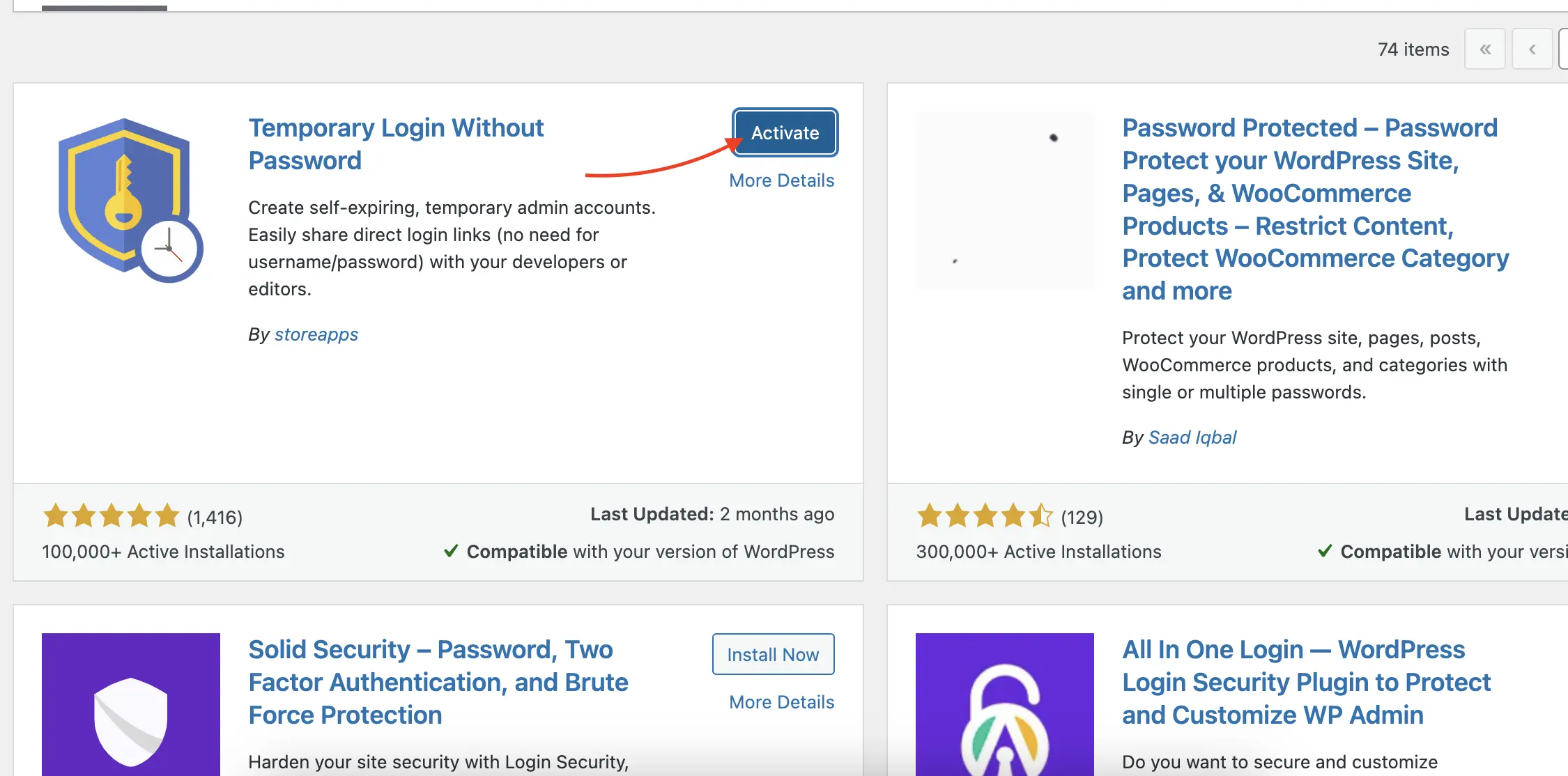
Plugins > Add New, then search for: Temporary Login Without Password
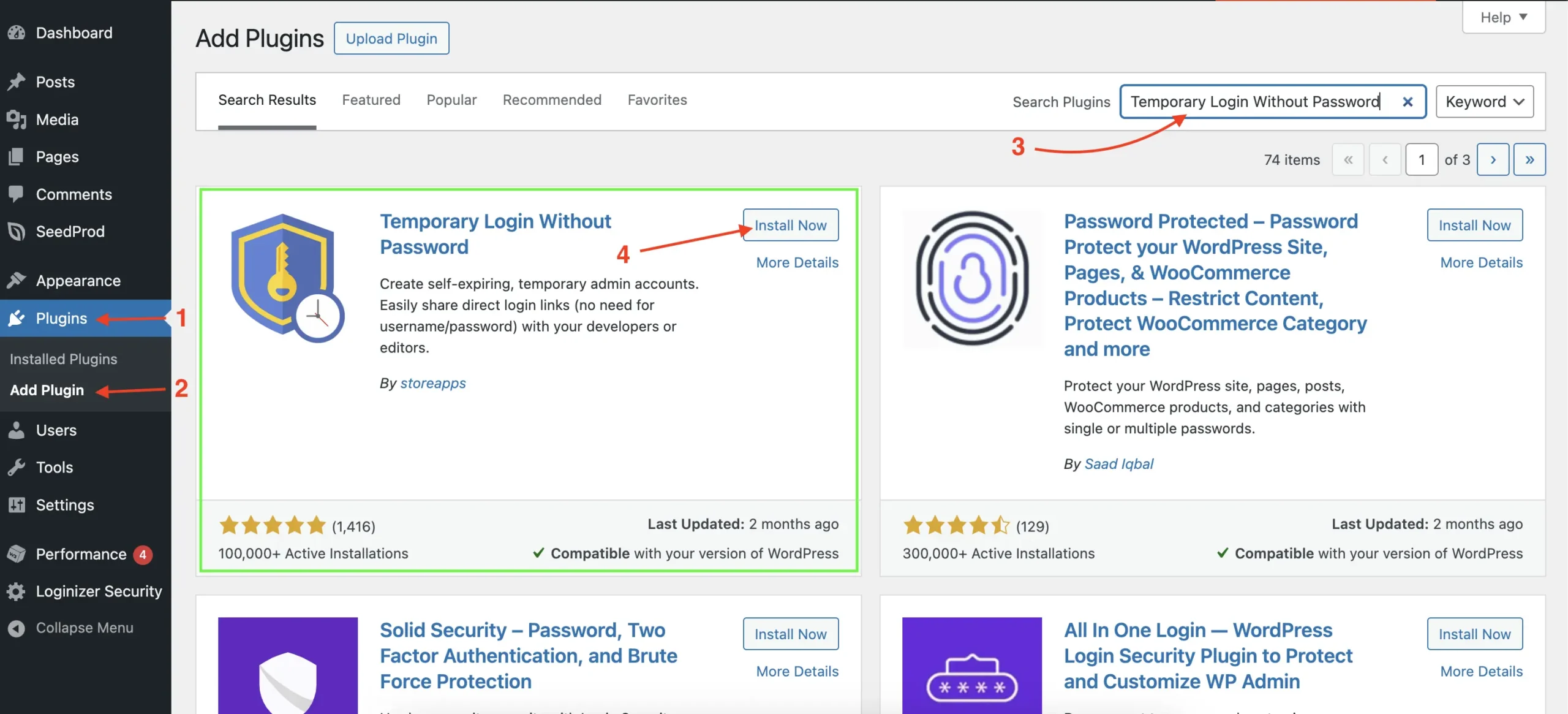
2. Click Install Now, then Activate the plugin
3. Go to Users > Temporary Logins
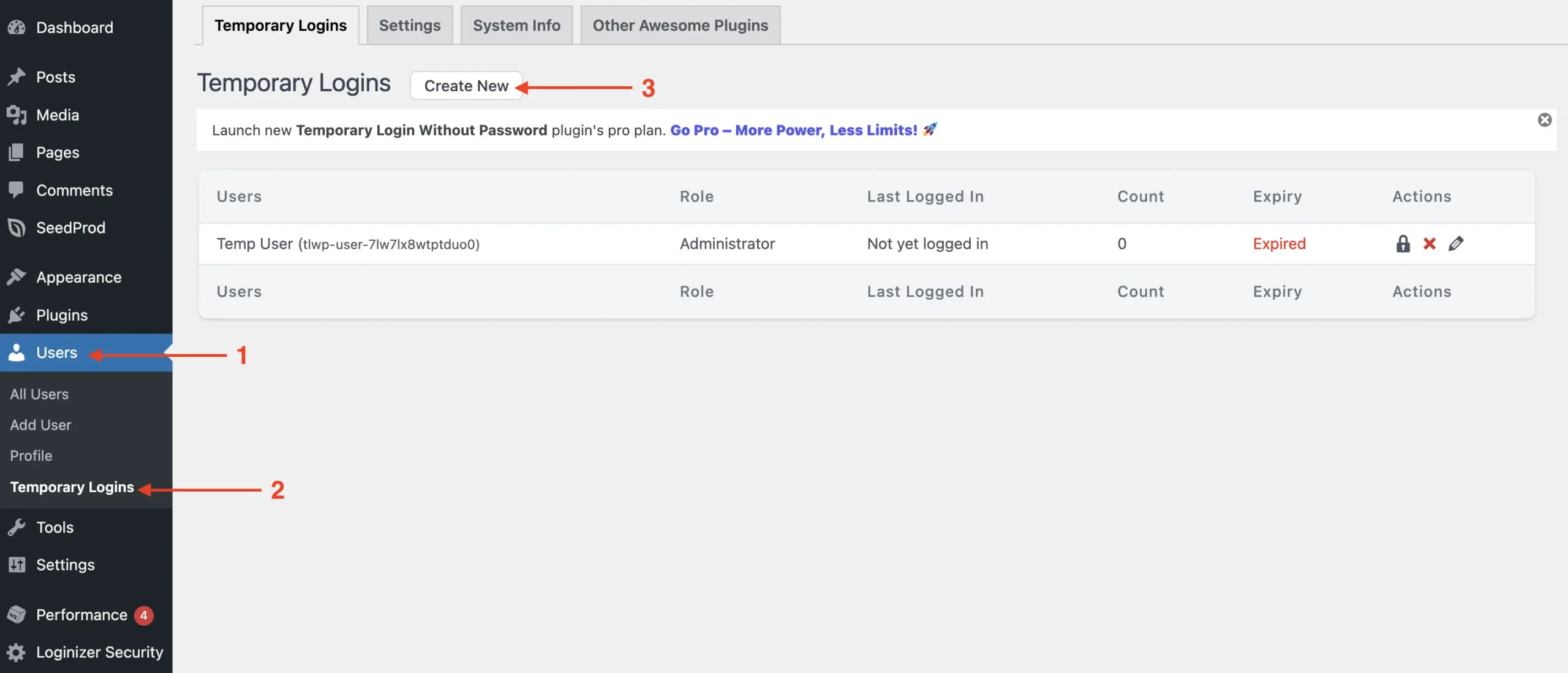
4. Click Create New and fill in the details:
- Email address of the person you’re granting access to
- First and last name (optional)
- Role (Administrator, Editor, etc.) – choose based on the level of access required
- Expiry – set how long the login should remain active (e.g., 1 day, 3 days, 1 week)
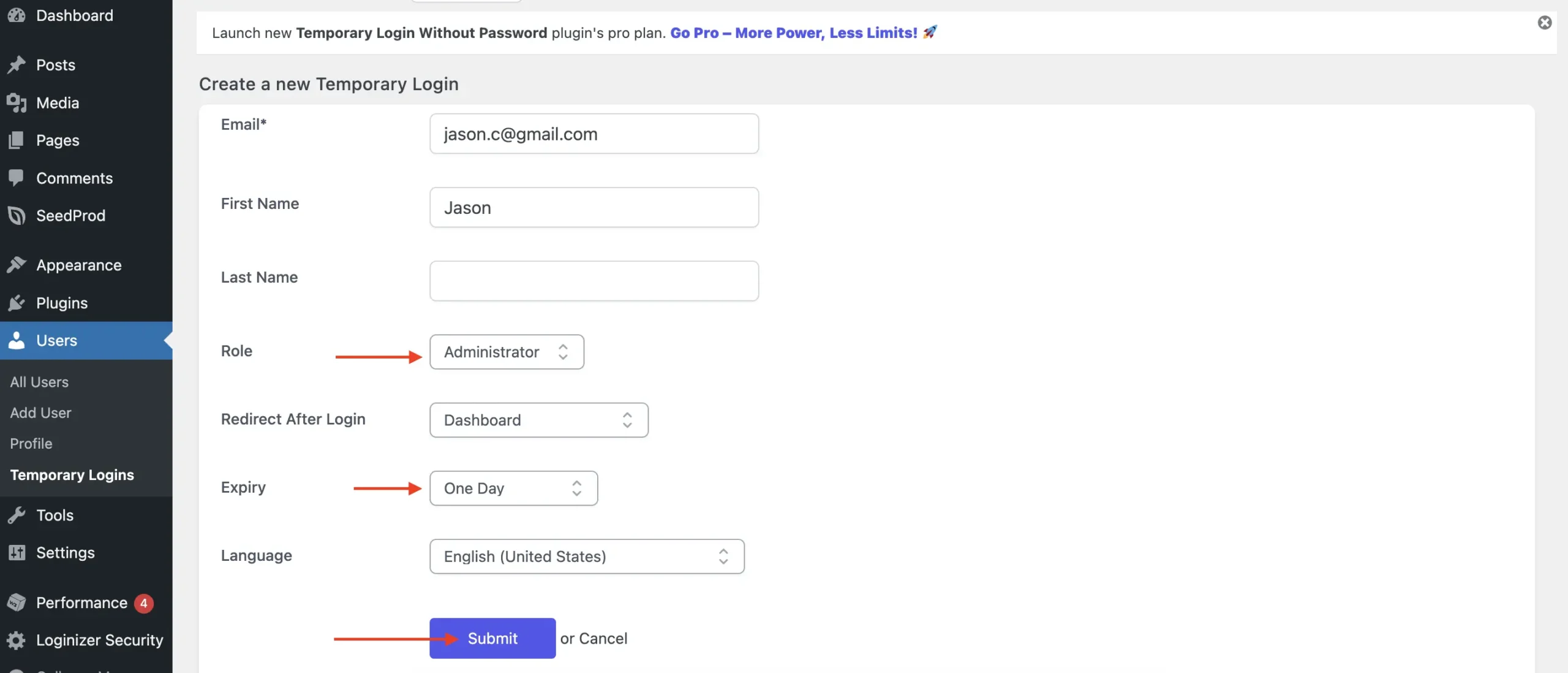
5. Click Submit, and you’ll get a unique login link
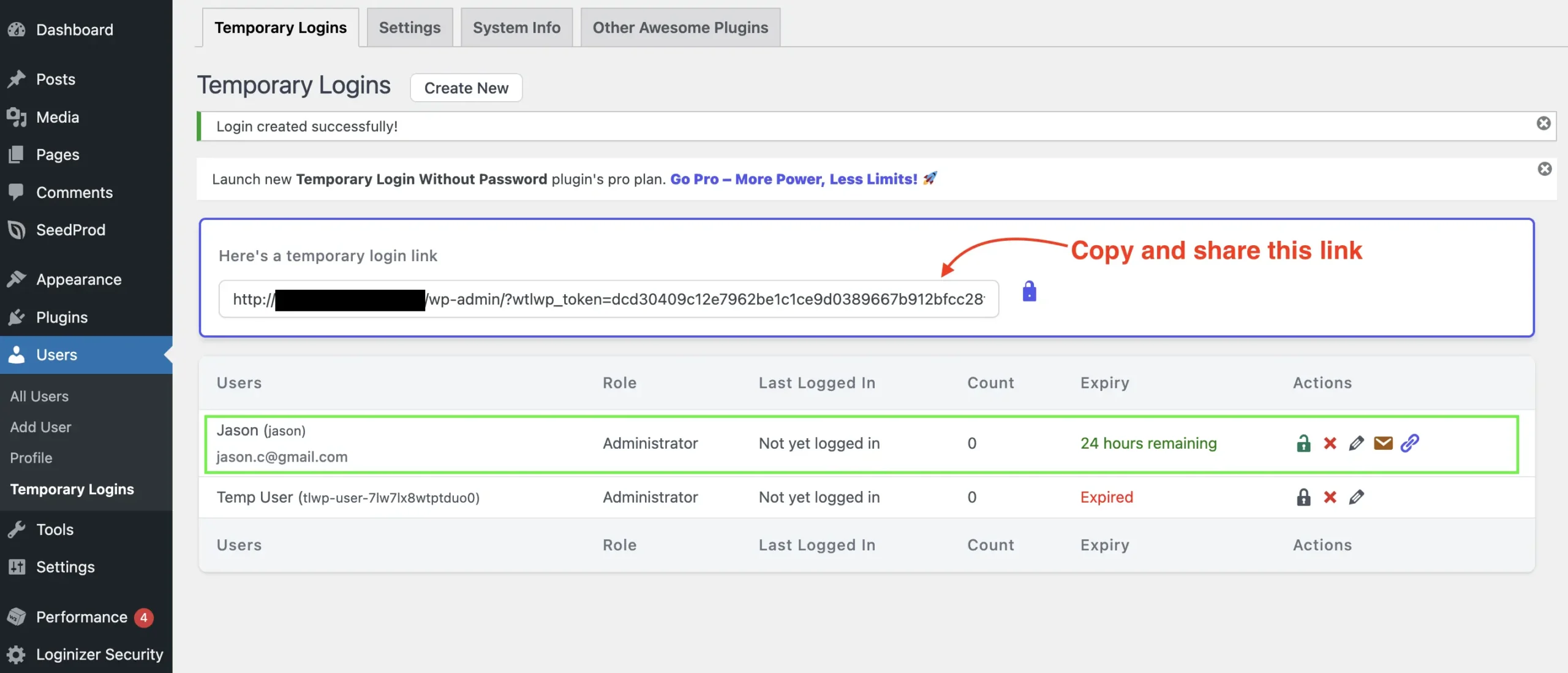
Share that link securely via email or messaging app (never post it publicly!)
Using a temporary login plugin is ideal for quick access that doesn’t compromise long-term security. Just be sure to choose the right role and expiration period, and revoke the link if access is no longer needed.
Unsafe Method (Not Recommended): Sharing Your Own Admin Login
Sharing your own WordPress admin username and password might seem like the fastest way to give someone access, but it’s also the riskiest. Not only does it expose your account to potential misuse, but it also removes any accountability since you won’t be able to trace who made which changes.
Even worse, if your login is reused across other websites or services, sharing it puts more than just your WordPress site at risk. For safety and control, always create a separate user or use a temporary login link instead.
Best Practices When Sharing WP Access
Sharing WordPress access should always be done with caution. Whether you’re creating a new user or using a temporary login plugin, following a few simple best practices will help keep your site secure and organized.
- Assign the correct user role: Only give Administrator access if absolutely necessary. Use Editor, Author, or Contributor roles for content-related tasks.
- Set expiration dates or remove access after use: If you’re using a plugin, set a clear expiration. For manual accounts, delete the user once their task is complete.
- Share credentials securely: Never send passwords over plain text or unencrypted messages. Use secure tools like password managers (e.g., Bitwarden, 1Password) or encrypted email.
- Audit user accounts regularly: Go to Users > All Users to check who has access and remove inactive accounts.
Screenshot here - Keep track of who made changes: Consider using an activity log plugin like WP Activity Log to monitor actions performed by different users. This helps with accountability and troubleshooting.
By sticking to these best practices, you reduce the chances of security breaches and keep your WordPress site clean, safe, and under control.
Sharing access to your WordPress site doesn’t have to mean compromising its security. Whether you’re working with a developer, an agency, or a support team, the safest way to grant access is by creating a new user or using a temporary login plugin with an expiration date.
Avoid sharing your own admin credentials, and always follow best practices to protect your site and data. For peace of mind, consider combining these tips with a full WordPress maintenance service like WpPatrol, we handle the technical side so you can focus on growing your business.